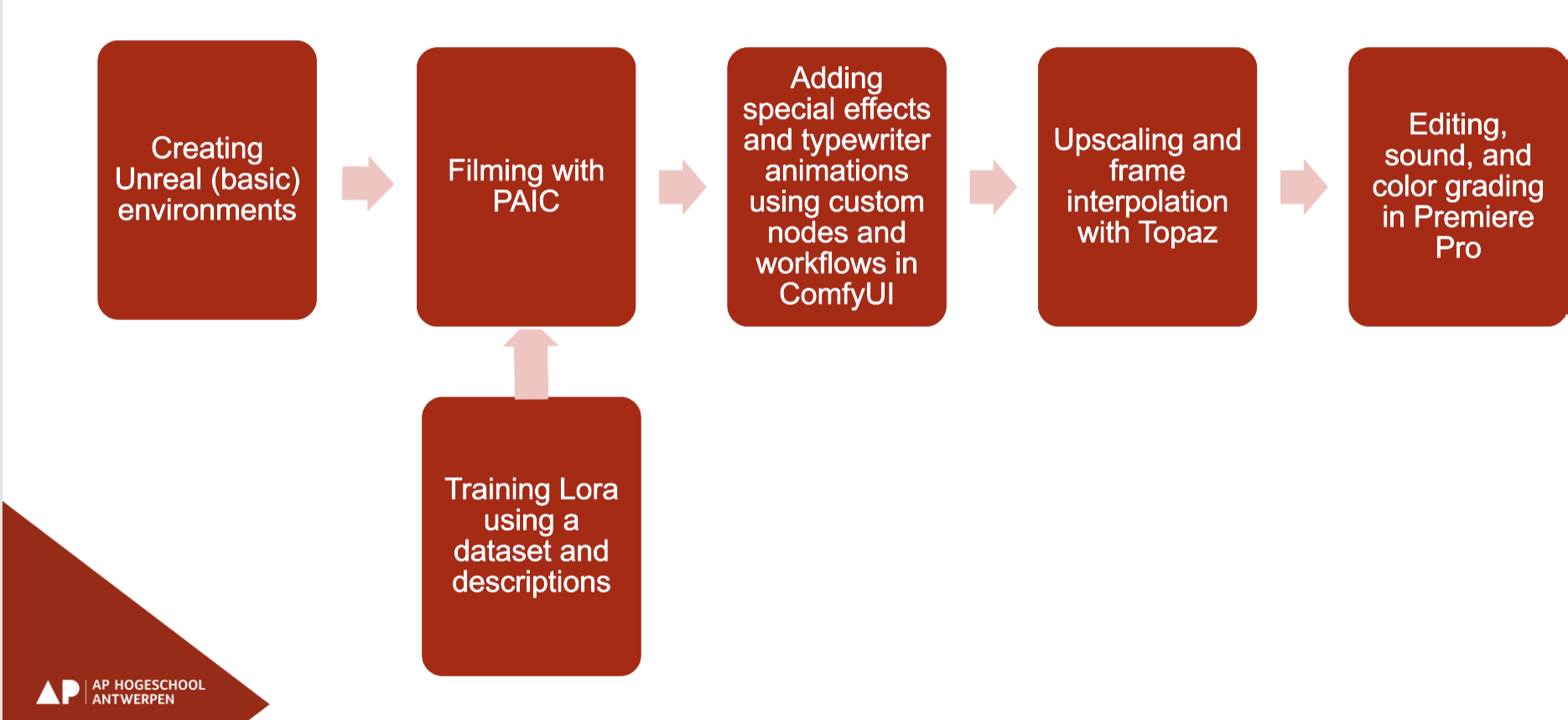
Unlike cloud-based AI video generation, this workflow combines real-time AI generation during filming with AI-assisted post-production. The core of the workflow is the Promptable AI Camera (PAIC), which transforms the live camera feed locally using generative AI models. This enables directors and performers to immediately evaluate the visual result on set and rapidly iterate during production.
After filming, additional AI-driven visual effects are created using custom ComfyUI workflows, followed by AI upscaling and conventional post-production. Because the entire workflow runs locally, it offers greater creative control, improved privacy, low latency, and avoids dependency on cloud-based AI services.
Step 01 – Environment Creation (Unreal Engine)
Step 02 – LoRA Training (Dataset Preparation)
Step 03 – Real-time Filming with PAIC
The live performance is captured using the Promptable AI Camera (PAIC).
During filming, every incoming camera frame is transformed in real time using locally running diffusion models. The system combines the live camera feed with the Unreal Engine environment, custom LoRA models, prompts, and additional conditioning techniques to generate the desired visual appearance.
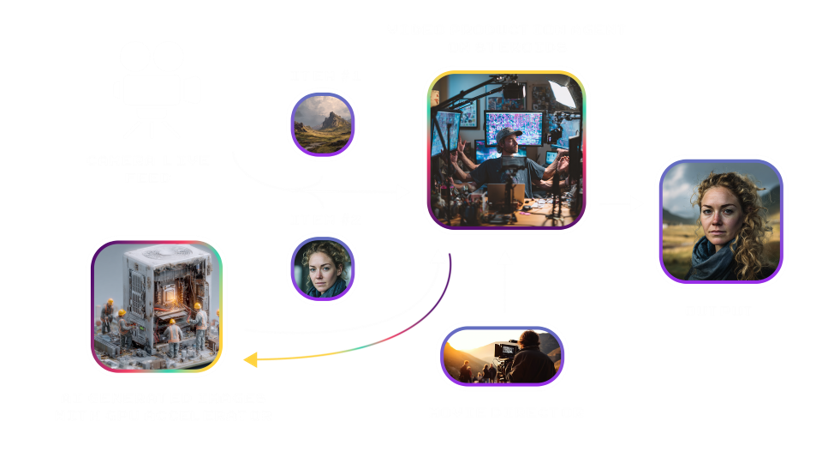
Directors and operators can immediately evaluate the generated output and adjust prompts, LoRA strength, generation settings, or camera work during filming. This allows creative decisions to be made directly on set rather than during later post-production.
The live generation combines:
- camera input
- Unreal Engine environments
- custom LoRA models
- text prompts
- ControlNet guidance
- locally running diffusion models
The resulting footage forms the basis for the remainder of the production pipeline.
Step 04 – Additional Visual Effects (ComfyUI)
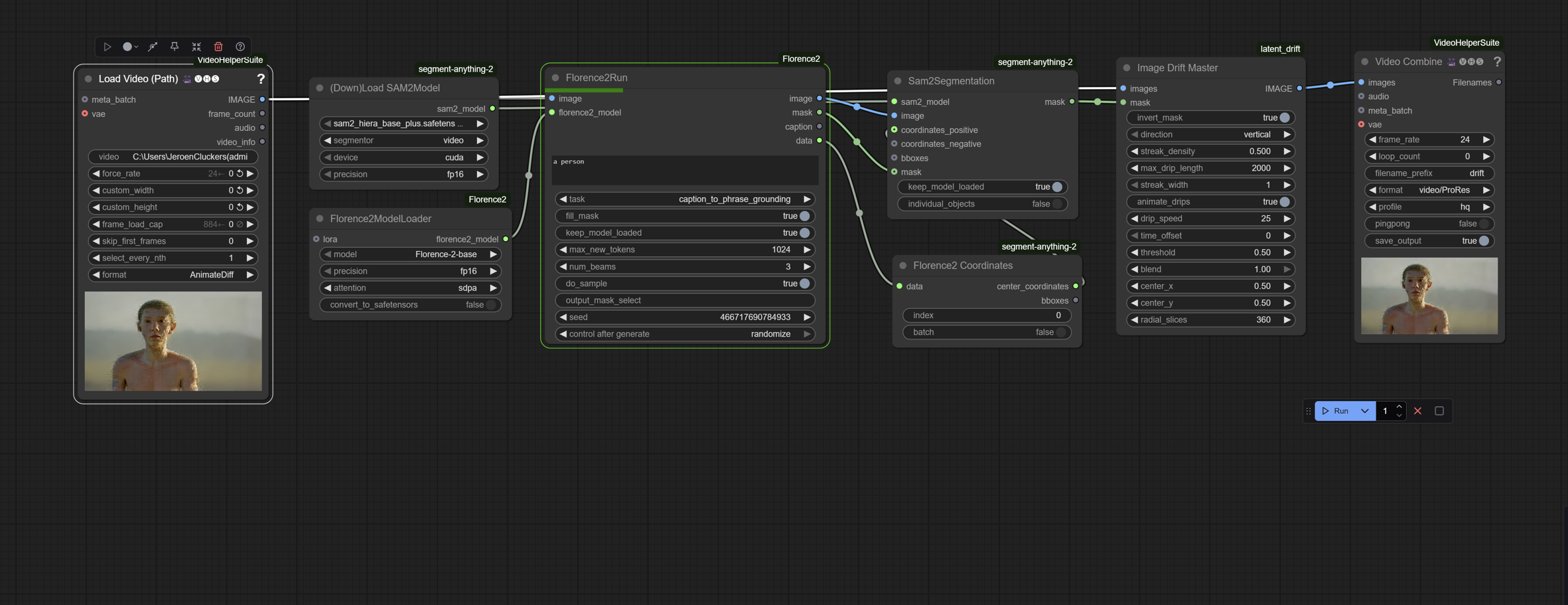
After filming, additional visual effects were created using custom ComfyUI workflows.
ComfyUI’s node-based architecture allows complex AI processing pipelines to be constructed by combining individual processing nodes into reusable workflows. Depending on the creative requirements, different workflows can be developed for specific shots or visual effects.
Typical effects included:
- stylized visual effects
- typewriter animations
- image transformations
- additional AI-based refinements
- custom visual processing pipelines
The modular nature of ComfyUI allows workflows to be easily adapted, expanded, or reused throughout the production, providing a flexible environment for AI-assisted post-production.